
The Ally Course Accessibility Report provides an overview of the accessibility of your course content in Blackboard Ultra. It displays an overall accessibility score and highlights specific files or items that require improvement, providing guidance on how to address them.
How to Check Your Ally Accessibility Report
Follow these steps to access and review your Course Accessibility Report in Blackboard Ultra.
Log in to Blackboard Ultra. From your Courses list, open the course you want to review.
Inside your course, click the Books & Tools icon (located in the top-right menu or under Course Tools). Select Accessibility Report LTI 1.3. The Course Accessibility Report will open on a new page or panel.

View your Overall Course Accessibility Score (displayed as a colored gauge). The report includes two tabs:
- The Overview tab shows the accessibility score, course content grouped by type, and a list of all issues identified.
- The Content tab shows you the specific content with accessibility issues.

The report includes an accessibility score for the entire course. Scores range from Low to Perfect. The higher the score, the fewer the issues:
-
 Low (0–33%): Needs help! Severe accessibility issues.
-
 Medium (34–66%): A little better. Somewhat accessible. Needs improvement.
-
 High (67–99%): Almost there. Accessible, but can improve.
-
 Perfect (100%): Perfect! No issues are found, but refinements are possible.
Ally provides the issue description and step-by-step guidance to fix it.
- All the content in your course is grouped by content type. Select Start to access the Content tab and begin addressing issues.
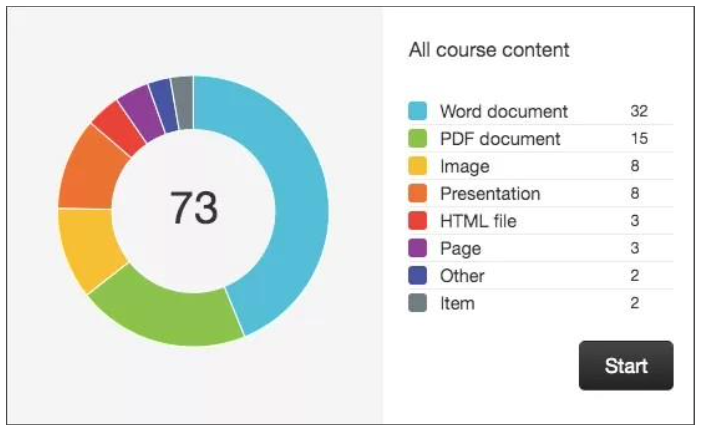
- Currently, Ally checks files in these formats:
- PDF files
- Microsoft® Word files
- Microsoft® PowerPoint® files
- OpenOffice/LibreOffice files
- Uploaded HTML files
- Image files (JPG, JPEG, GIF, PNG, BMP, TIFF)
- WYSIWYG/VTBE content
- YouTube™ videos embedded in WYSIWYG/VTBE content
Choose what to fix first
- Use the report to help you decide what to fix first.
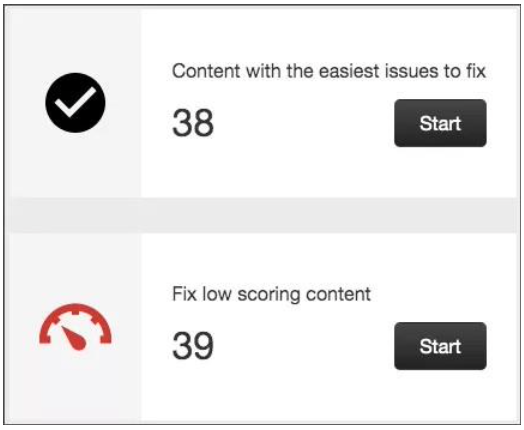
- For example, you could address content with the most severe issues first or start with content that’s easiest to fix.
- Choose between Content with the easiest issues to fix and Fix low-scoring content. See how many pieces of content you’ll be fixing.
- Select Start.
After making updates, refresh your Course Accessibility Report and verify that your overall score has improved.
Tips
- Aim for 100% A perfect score provides the best experience for all students.
- Use Alternative Formats Ally automatically generates alternative formats (audio, ePub, HTML) for students based on your uploaded content.
- Build Accessibility In Early Encourage accessibility improvements during course development, not after publishing.
Need Assistance?
For help with Ally, Blackboard Ultra, course accessibility, or other digital teaching tools, please reach out to the Instructional Design team.
Contact: id@daemen.edu
Resources
- Ally Accessibility Checker — Anthology Help Official Anthology documentation for the Ally Accessibility Checker in Blackboard Ultra.